Présentation du produit
Zone Security keeps open spaces safe without doors or turnstiles. It recognises who is in each zone of a floor and raises an incident when someone is where their watchlist has no permission. It replaces a classic intrusion alarm in buildings where people move freely between shared and private areas.
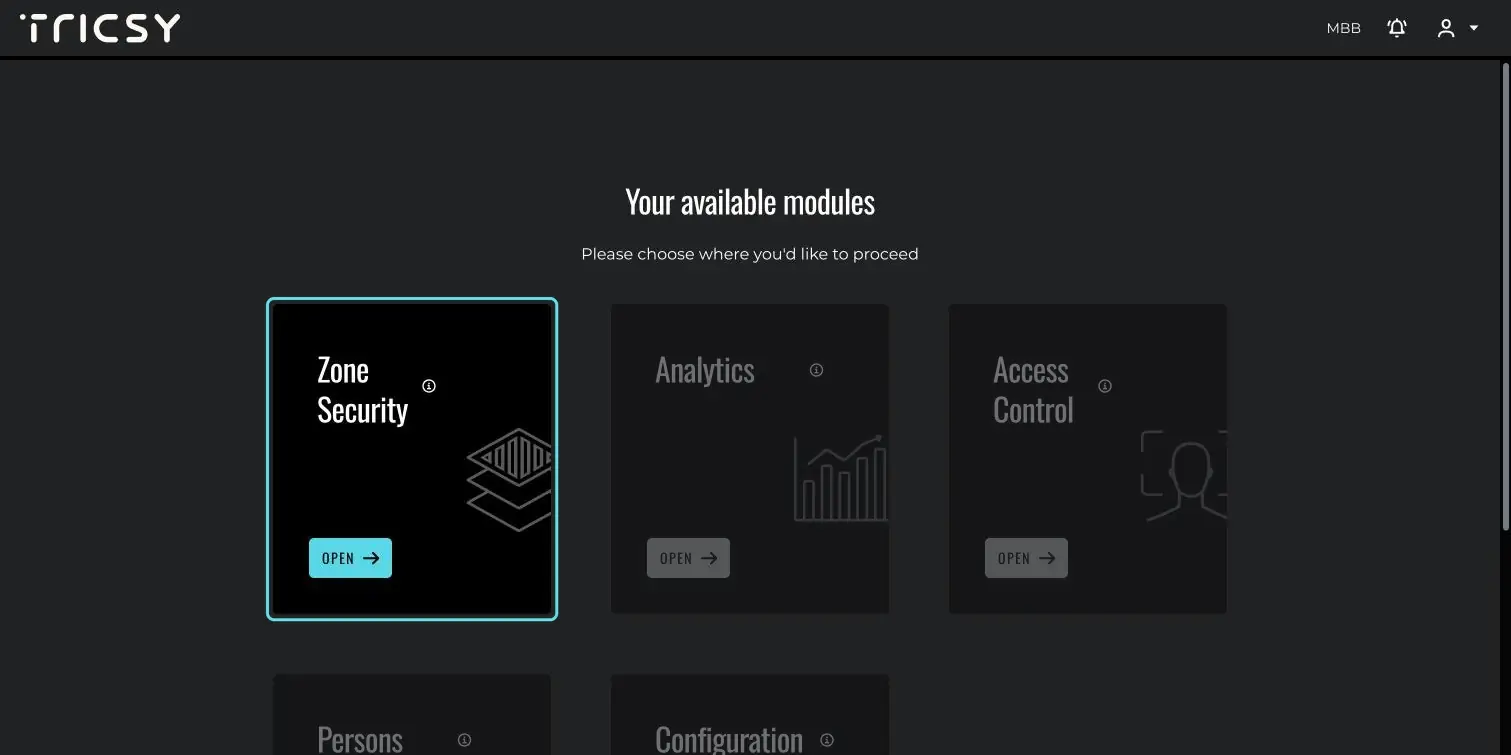
Zone Security is a module of the Tricsy web application. It runs on-premises on top of Innovatrics SmartFace, which processes the camera streams and identifies faces against watchlists. Open it from the Zone Security tile on the home screen, or from the top menu, next to Analytics, Access Control, Persons and Configuration.
What it does
- Knows who is where. Every detection is matched against the building's watchlists: employees, tenants, visitors, blacklist, VIP.
- Compares it with the rules. Each zone lists the watchlists allowed in it. Anyone else, including unknown people, violates the zone.
- Reacts in stages. A trigger turns the violation into an incident and runs an escalation path: a Google Chat message, a warning light, a message on digital signage, a call to the video management system (VMS), and stronger steps if the incident stays open.
- Closes itself when it can. When the person walks into a zone they are allowed in, or the trigger's timeout passes, the incident is auto-resolved.
- Keeps a record. Every incident has a position on the floor plan, an event log, comments and an assignee.
Two operating modes
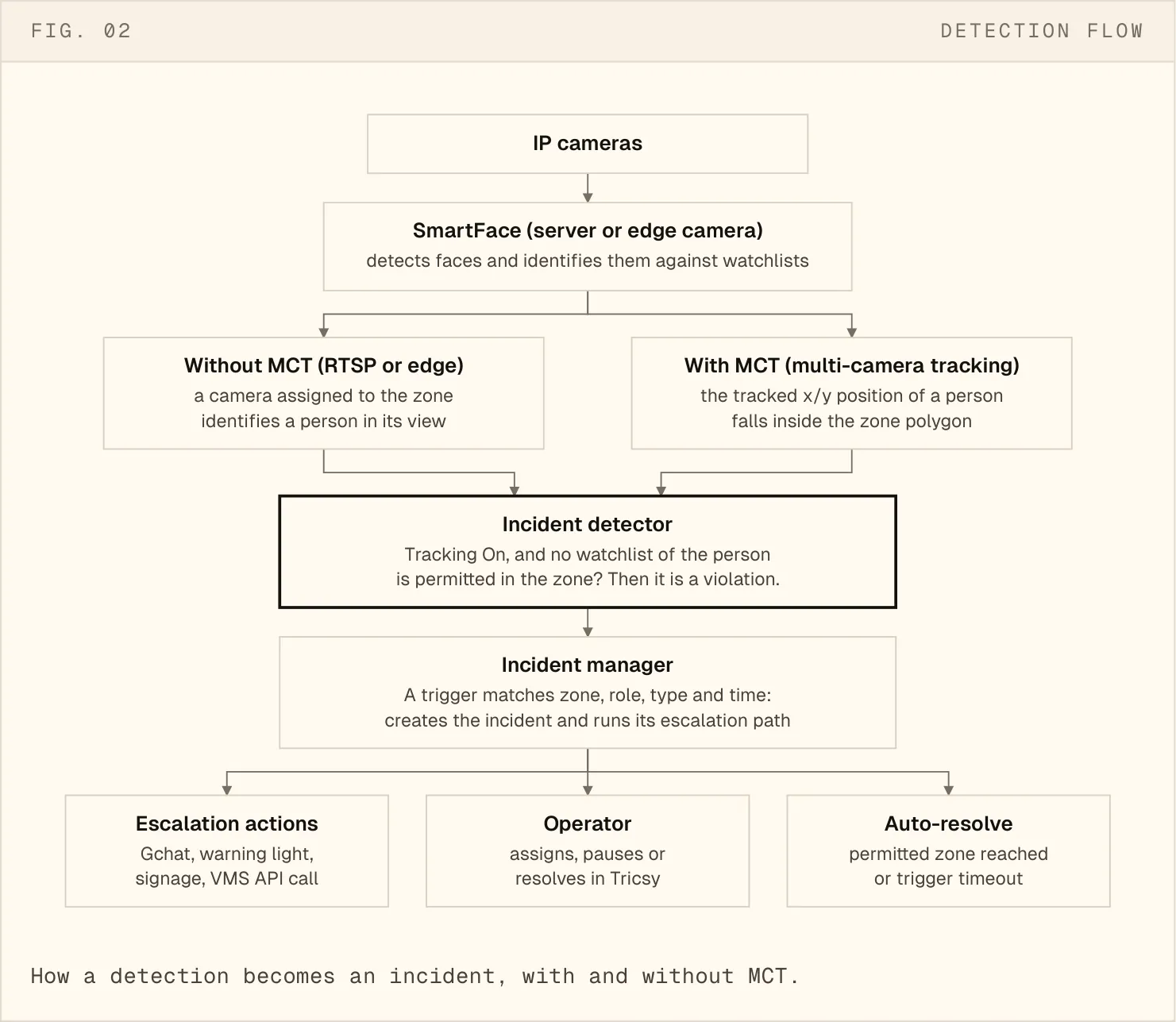
Zone Security runs with MCT (multi-camera tracking), where it knows each person's position on the floor plan, or without MCT, where each camera watches a zone. A building can combine both.
| Without MCT | With MCT | |
|---|---|---|
| Input | Identification events from the cameras assigned to the zone | The person's x/y position on the floor plan, tracked across several cameras |
| Camera processing | RTSP: SmartFace processes the video stream. Edge: the camera detects and matches faces and sends only the result | SmartFace combines the cameras into one track per person |
| How a zone is covered | A camera is assigned to one zone. A zone can have several cameras | The zone is a polygon on the floor plan. The position is tested against it |
| When an incident starts | A camera of the zone identifies a person whose watchlist is not permitted there. Default: 2 detections within 1 s, face at least 25 px | The tracked position stays inside a zone the person is not permitted in for longer than Unauthorized Zone Timing (default 3 s) |
| Unknown people | Raised after Unknown Person Delay (default 3 s), unless the same track is identified in the meantime | Raised when the tracked person has no permitted watchlist |
| Best for | Doors, corridors and rooms where a camera sees everyone who enters | Open floors where zone borders do not follow walls |
RTSP or edge, without MCT. Both are assigned to zones the same way. With RTSP the camera only streams video and the SmartFace server detects, extracts and matches faces, so the server is sized for the number of streams. With edge processing a supported camera (Axis with an Ambarella chip, AXIS OS 11.11 or newer) matches faces on the device. An edge camera only recognises members of the watchlists synchronised to it, so the watchlists permitted in its zone must be selected for sync in SmartFace.
In both modes a zone only raises incidents while its Tracking status is On, and only when a trigger matches the zone, the person's role and the time of day.
Key concepts
| Concept | What it is | Where to set it |
|---|---|---|
| Floor | A building level with its floor plan image | Zone Security › Floors |
| Zone | An area on a floor: a polygon, its cameras, tracking status and permitted watchlists | Zone Security › Zones, or drawn in the floor editor |
| Watchlist permission | The watchlists whose members may be in a zone | Zone › Watchlists |
| Role | How a person is classified: Resident (identified member), Visitor (member of a visitor watchlist) or Unknown person | Derived automatically |
| Trigger | The rule that turns a violation into an incident: type, roles, zones, schedule, escalation path | Zone Security › Triggers |
| Escalation path | Levels of actions, each with a wait time | Trigger › Escalation path |
| Setup | A saved set of zones with tracking on or off, applied in one click (day, night or event mode) | Zone Security › Setups |
| Incident | One violation by one person, with its level, status, position and log | Zone Security › Incidents |
Who uses it
| Role | Responsibility | Zone Security access |
|---|---|---|
| System Administrator | Installs and configures the system, users and devices | Full access |
| Security Manager | Defines the rules: floors, zones, triggers, setups, incident handling settings | Incidents, Triggers, Zones, Floors (edit) |
| Security Operator (moderator) | Watches incidents and responds to alerts | Incidents only (edit) |
| Identity / Watchlist Manager | Keeps watchlists and their members up to date | No Zone Security access; Persons only |
The rest of this manual follows that order: installation for administrators, configuration for security managers, and the operator manual for the people who handle incidents.
Installation
Zone Security is installed on a local Linux server as a set of Docker containers next to SmartFace. Nothing leaves the site. This chapter is for the system administrator or the integration partner.
Prerequisites
- Server: Linux (Ubuntu 24.04 LTS recommended), x86-64 CPU with AVX2, Docker and Docker Compose, shell access. Windows is not supported.
- SmartFace: the Innovatrics video platform, installed and reachable. It processes the camera streams, holds the watchlists and, for MCT, runs multi-camera tracking. Size the server for the number of camera streams together with Tricsy.
- Cameras in SmartFace: RTSP cameras streaming to the server, or edge cameras (Axis with an Ambarella chip, AXIS OS 11.11 or newer) running SmartFace on the device. Without MCT, faces should be at least 25 px wide in the image.
- Floor plans of each level as PNG or JPG, ideally to scale and aligned with the MCT floor model.
- Network: the server can reach SmartFace (REST API, GraphQL, RabbitMQ) and, for Google Chat alerts, the internet.
Components
| Container | Port | Role |
|---|---|---|
acbsp-gui | 3000 | Web application (Tricsy UI) and its GraphQL API |
acbsp-environment-api | 3001 | Buildings, floors, floor plans, zones, cameras, watchlist permissions, triggers, setups, configuration |
acbsp-ingestion | 3030 | Reads identification events from SmartFace (RabbitMQ) and publishes them to Kafka |
acbsp-incident-detector | 3040 | Detects zone violations with and without MCT |
acbsp-incident-manager | 3050 | Matches triggers, creates incidents, runs escalation, auto-resolves |
acbsp-notification-service | 3060 | Sends alerts (Google Chat) and in-app notifications |
acbsp-cronjob-service | 3070 | Scheduled cleanup (data retention) |
acbsp-mct-data-enrichment-service | 3080 | Adds identity to MCT positions |
acbsp-mqtt-consumer | — | Reads MCT positions from SmartFace |
acbsp-incident-api | 3090 | Stores incidents and their logs |
environment-db, incident-db | 5442, 5444 | PostgreSQL databases |
kafka, kafka-ui | 9092, 8080 | Internal event bus and its admin UI |
The same installation also runs the Access Control module (access-controller-api on 4050, access-notification-subscriber on 4060).
Install
- Create the shared Docker network and the installation folder:
docker network create sf-network 2>/dev/null || true sudo mkdir -p /srv/acbsp/acbsp && cd /srv/acbsp - Start the dependencies (Kafka and Kafka UI) from the installation package:
docker compose -f docker-compose.dependencies.yml up -d - Copy the Tricsy Docker configuration to
/srv/acbsp/acbsp/and set the release version in.env:cd /srv/acbsp/acbsp sed -i -e "s/latest/<release-version>/g" ./.env - Point the services at SmartFace in
.env: the SmartFace REST API (CORE_API_ROOT), its GraphQL endpoint (GRAPHQL_ROOT,VPP_GRAPHQL_ENDPOINT) and, when working with MCT, the MCT GraphQL endpoint (MCT_GRAPHQL_ENDPOINT). - Start the services:
docker compose up -d
Verify
docker pslists every container from the table above as running.- Each service answers its health check, for example
curl http://localhost:3040/healthzfor the incident detector. - The web application opens at
http://<server>:3000and shows the Zone Security tile. - API documentation is at
http://<server>:3001/api-docs(environment) andhttp://<server>:3090/api-docs(incidents).
If a container keeps restarting, read its log (docker logs acbsp-incident-detector) and check that sf-network exists and the databases answer.
First login and users
- Set
AUTH_ENABLED=truein the GUI service's.env. With authentication off, everyone who opens the page has full administrator rights. On the first deployment the system creates the roles and one DefaultSuperAdmin account. Sign in with it and change its password at once. - Create the other users and give each a role: System Administrator, Security Manager, Security Operator or Identity / Watchlist Manager. New users receive a password-setup link and choose their own password (at least 8 characters).
- In Configuration › General, select the active building. Everything you see and change applies to that building.
- In Configuration › Building settings, set the building's time zone and its Work Time. Triggers use the work time to tell work hours from off-time.
The system is then ready for floors, zones and triggers.
Configuration
The security manager sets up Zone Security in five steps. Each step depends on the one before it.
- Settings — blacklist and VIP watchlists, detection thresholds, Google Chat webhooks, data retention.
- Floors — one per level, with its floor plan image and MCT model name.
- Zones — drawn on the floor plan, with cameras and the watchlists allowed inside.
- Triggers — which violations become incidents, when, and how they escalate.
- Setups — saved on/off states of zones for different modes of the building.
Changes take effect within seconds. The detector and the incident manager reload zones, triggers and settings as soon as you save.
Zone Security settings
Open Configuration and use the Zone Security Settings group in the left menu.
Trigger settings pick the watchlists whose members are treated as Blacklist and as VIP. When a blacklisted person violates a tracked zone, the system creates a Blacklist incident in addition to the zone violation.
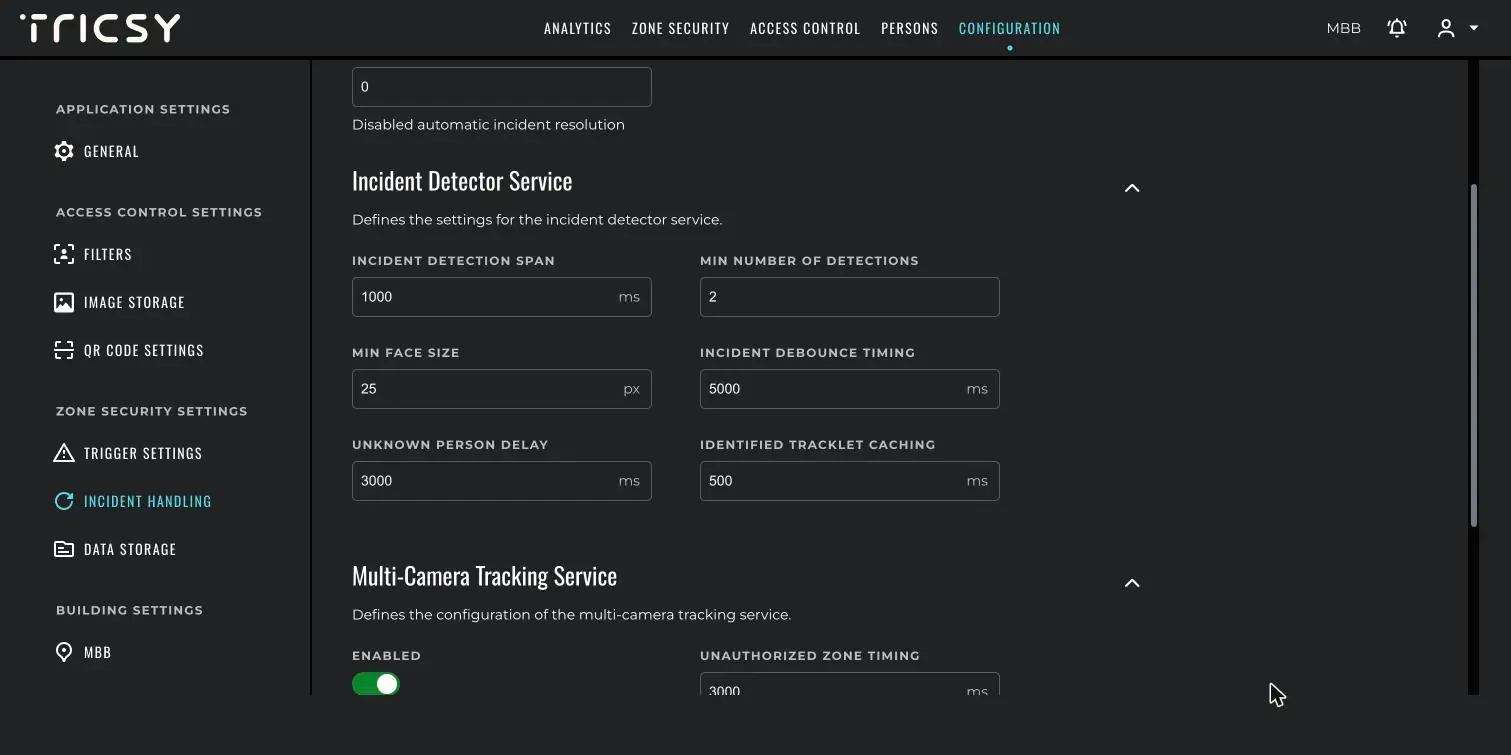
Incident handling tunes how sensitive detection is. The defaults work for most buildings. Change them only after testing.
| Setting | Default | What it does |
|---|---|---|
| Automatic Incident Resolve Threshold | 0 min (off) | Resolves an active incident with no update for this many minutes |
| Incident Detection Span | 1000 ms | Time window in which detections are counted (without MCT) |
| Min Number of Detections | 2 | Detections needed within the span before an incident starts (without MCT) |
| Min Face Size | 25 px | Smaller faces are ignored (without MCT) |
| Incident Debounce Timing | 5000 ms | Prevents a second incident for the same person and type in this time |
| Unknown Person Delay | 3000 ms | Waits this long before raising an unknown person, in case the face is identified meanwhile |
| Identified Tracklet Caching | 500 ms | How long an identified track keeps its identity |
| MCT: Enabled | on | Turns working with MCT on or off |
| MCT: Unauthorized Zone Timing | 3000 ms | How long a tracked person must stay in a forbidden zone before an incident starts |
| MCT: Position Cache Time | 30000 ms | How long the last known position is kept |
| MCT: Identification Cache Time | 3600000 ms (1 h) | How long a tracked person keeps their identity |
| Notification: Gchat Webhook URLs | — | Google Chat spaces that receive alerts, separated by commas |
Data storage sets the retention period in days (default 30), turns on automatic cleanup and picks its start time (UTC). Older incidents are deleted automatically.
Building settings set the time zone and Work Time. Triggers set to Work or Off-time follow these hours.
Floors and the floor editor
A floor is a building level with its floor plan. Zones are drawn on one floor and cannot span two.
- Go to Zone Security › Floors and click Add floor.
- Enter the Floor name.
- When working with MCT, enter the MCT Model Mapping: the MCT model name or names of this level in SmartFace, separated by semicolons. This is how a tracked position is matched to the right floor.
- Upload the floor plan image and save.
Click a floor tile to open the floor editor. On the left are the tools: Select, Draw (draw or reshape a zone polygon), Pan and Grayscale (dims the plan so zones stand out). On the right you pick the floor and the layer:
- Zone Security — zones that raise incidents.
- Security Automation and Control Automation — zones used by building automation, for example gobo warning lights and room devices.
The zone list under the layers lets you add a zone, open its settings, delete it, and import or export zones as JSON, for example to copy a layout to another building. Use the zoom buttons and Download image at the top, and click Save before you leave.

Zones
A zone is the unit of protection: an area, the cameras that watch it and the watchlists allowed inside.
- Go to Zone Security › Zones and click Add zone, or use + in the floor editor.
- On Information, enter the Zone title, choose the Floor and set Tracking status to On. A zone with tracking Off never raises incidents.
- Next to Floorplan, click Config and draw the polygon with the Draw tool. The row then shows Coordinates defined. With MCT the polygon is required. Without MCT it shows operators where the zone lies on the plan.
- On Cameras (without MCT), tick the cameras that cover this zone. The list holds both RTSP cameras and edge streams, counted separately. A zone can have several cameras, but each camera belongs to one zone only. For an edge camera, also select the zone's permitted watchlists for sync on that edge stream in SmartFace.
- On Watchlists, tick every watchlist whose members may be in the zone. Everyone else, including unknown people, violates the zone.
- Click Save.
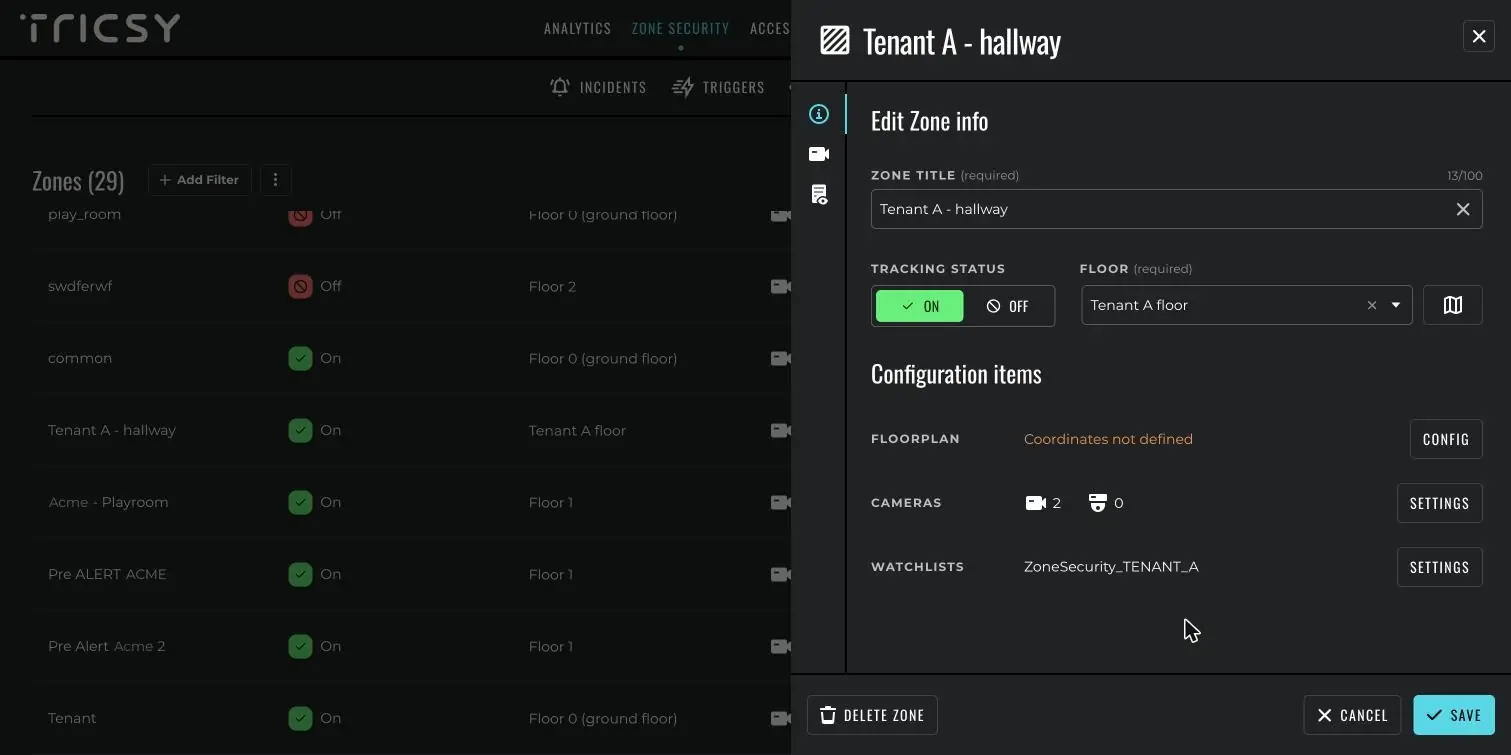
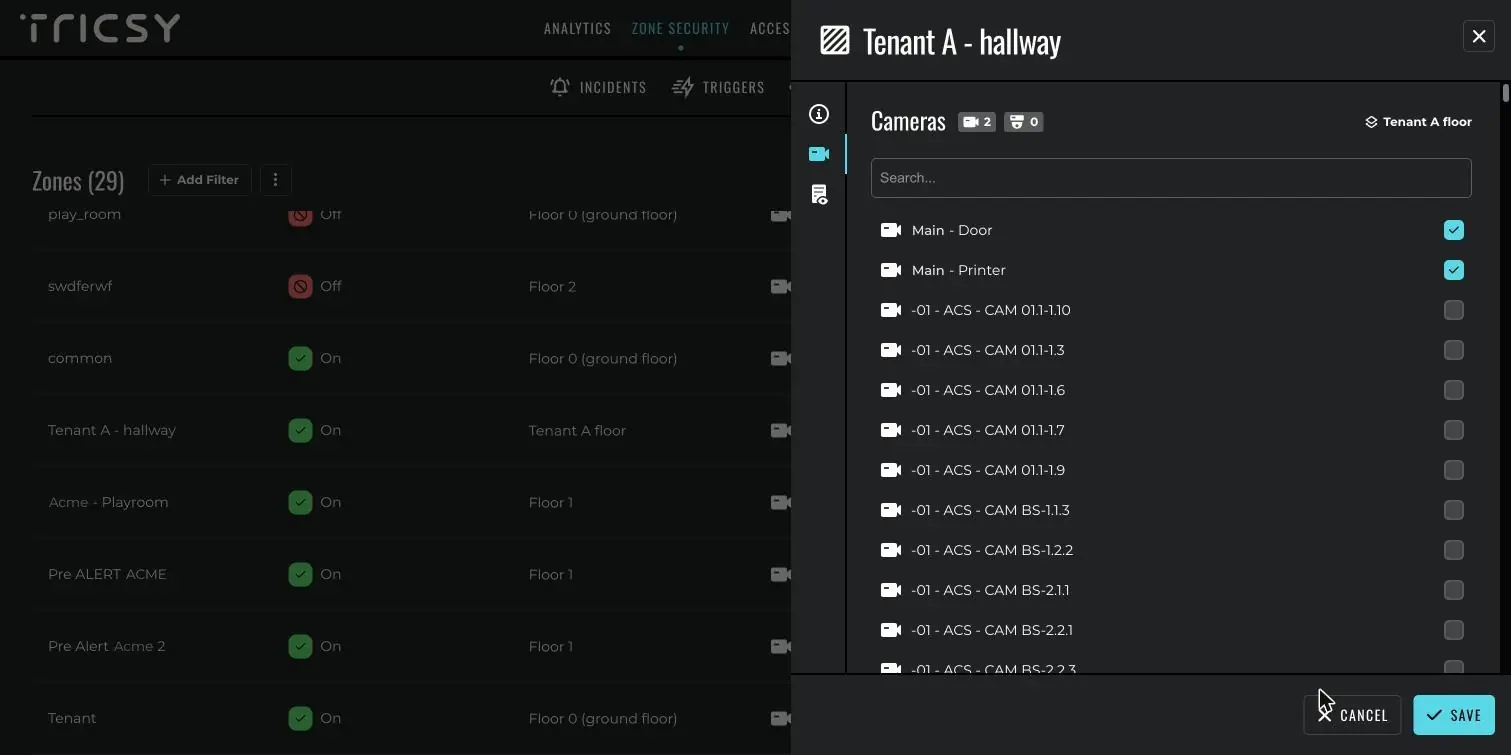
The Zones list shows each zone's tracking status, floor, number of RTSP cameras and edge streams, permitted watchlists and how many triggers use it. Add Filter narrows the list by title, floor, tracking status or watchlist.
Watchlists for zones. Create dedicated watchlists for zone permissions, for example
ZoneSecurity_<company>, rather than reusing access-control watchlists. Zone rules then stay independent of door rights.
Triggers and escalation
A trigger decides which violations become incidents and what happens next. Without a matching trigger, a violation is ignored.
- Go to Zone Security › Triggers and click Add trigger.
- Trigger info: enter a name, switch Status on and choose the Type: Zone violation or Blacklist. VIP types are listed for future use.
- Trigger schedule: choose the Activation period — Work (building work time), Off-time or Always. Turn on Specify time range to limit it further, for example work period between 08:00 and 22:00.
- Auto-resolve: tick Auto-resolve incidents and set Resolve after (seconds) to close incidents automatically and stop their repeating actions.
- Roles: pick who the trigger applies to — Resident, Visitor, Unknown Person. Visitors are members of a watchlist with "visitor" in its name.
- Zones: click Settings and tick the zones the trigger watches.
- Escalation path: click Settings and define the levels, typically three. Level 1 runs immediately. Level 2 and 3 run after their Wait time if the incident is still open. Each level runs one or more actions: Gchat, Warning light (for example a gobo projector), Digital signage and VMS API call. Warning light and digital signage repeat, by default every 5 seconds, while the incident is active. A VMS API call records the incident on the video timeline so the recording around it can be found at once.
- Click Save. If the new trigger overlaps an existing one (same zone, role, type and time), the system shows Trigger Overlap Detected and lets you open the conflicting trigger.
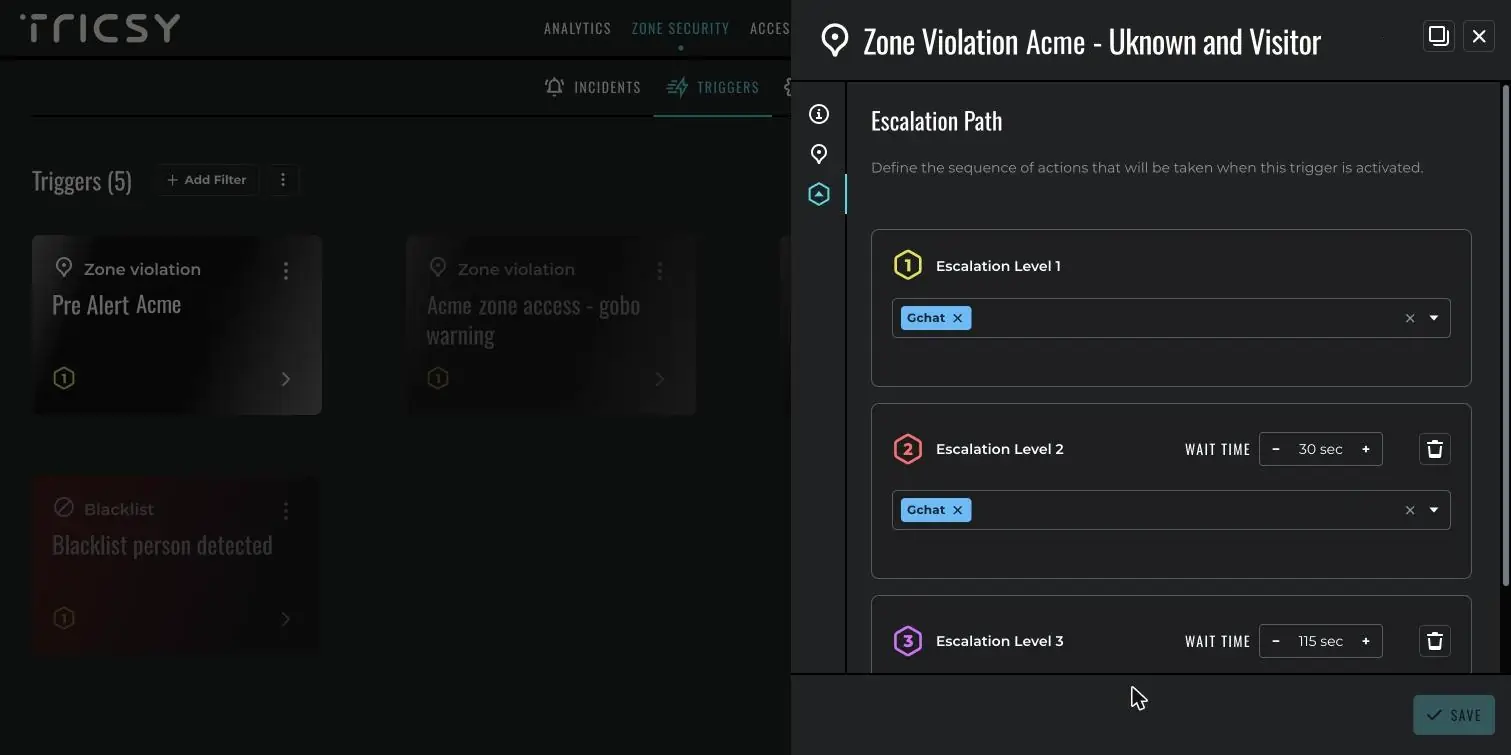
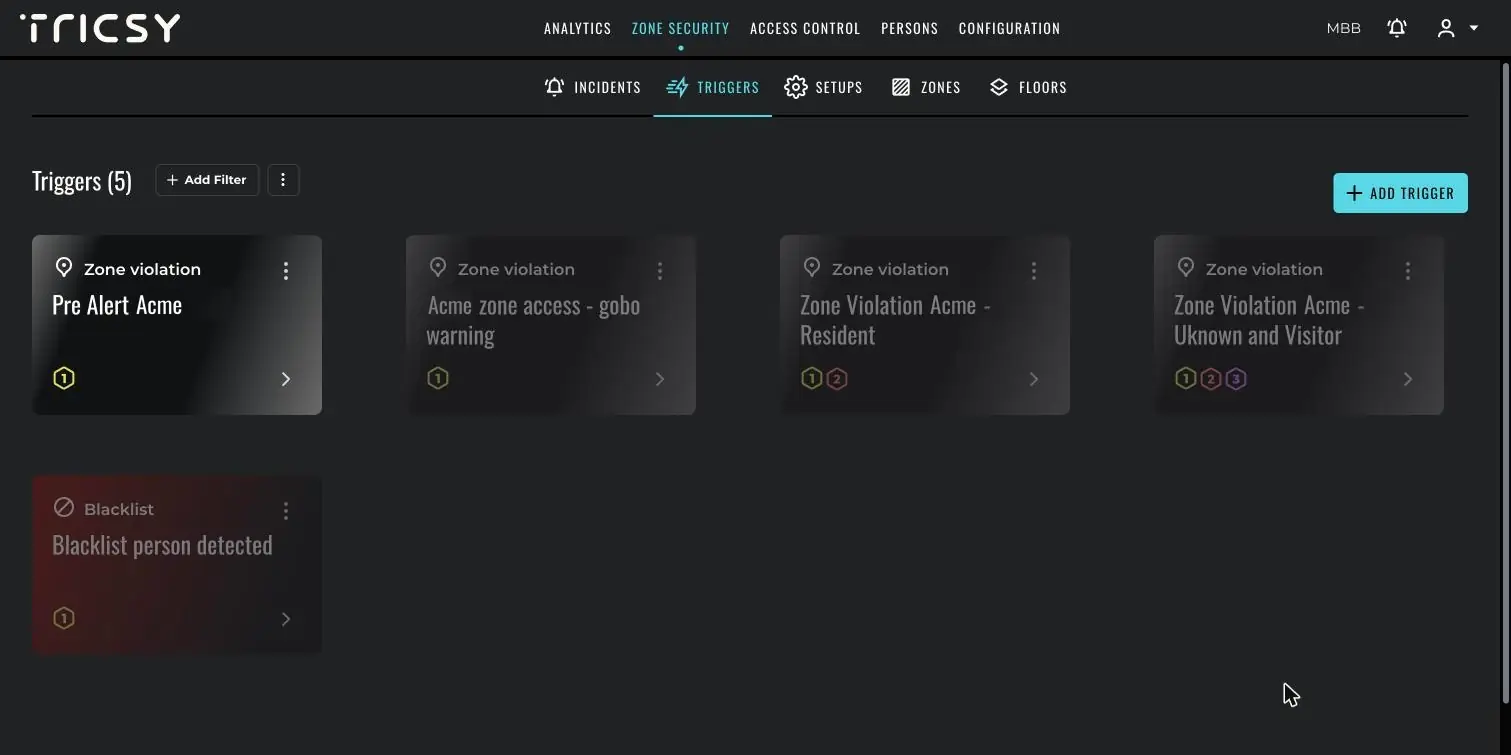
Click a card to open the trigger. The copy icon at the top of the panel duplicates it, and Delete trigger removes it.
Example. Tenants and unknown people must not enter Acme's floor during the day. Zone: "Acme open space", with only the
ZoneSecurity_ACMEwatchlist permitted. Trigger: Zone violation, Work, roles Resident, Visitor and Unknown Person. Level 1 warning light, level 2 after 30 s a Google Chat message to reception, level 3 after 120 s a Google Chat message to the security guard.
Setups
A setup stores which zones have tracking on and which off, so the whole building can switch mode in one click — for example Day, Night or Event.
- Go to Zone Security › Setups and click Add setup.
- Name the configuration. In the right panel, switch each floor on or off, or expand a floor and switch single zones. The floor plan on the left shows the result.
- Click Save.
- To activate a setup, click Apply in its row. All zones take the tracking status stored in the setup.
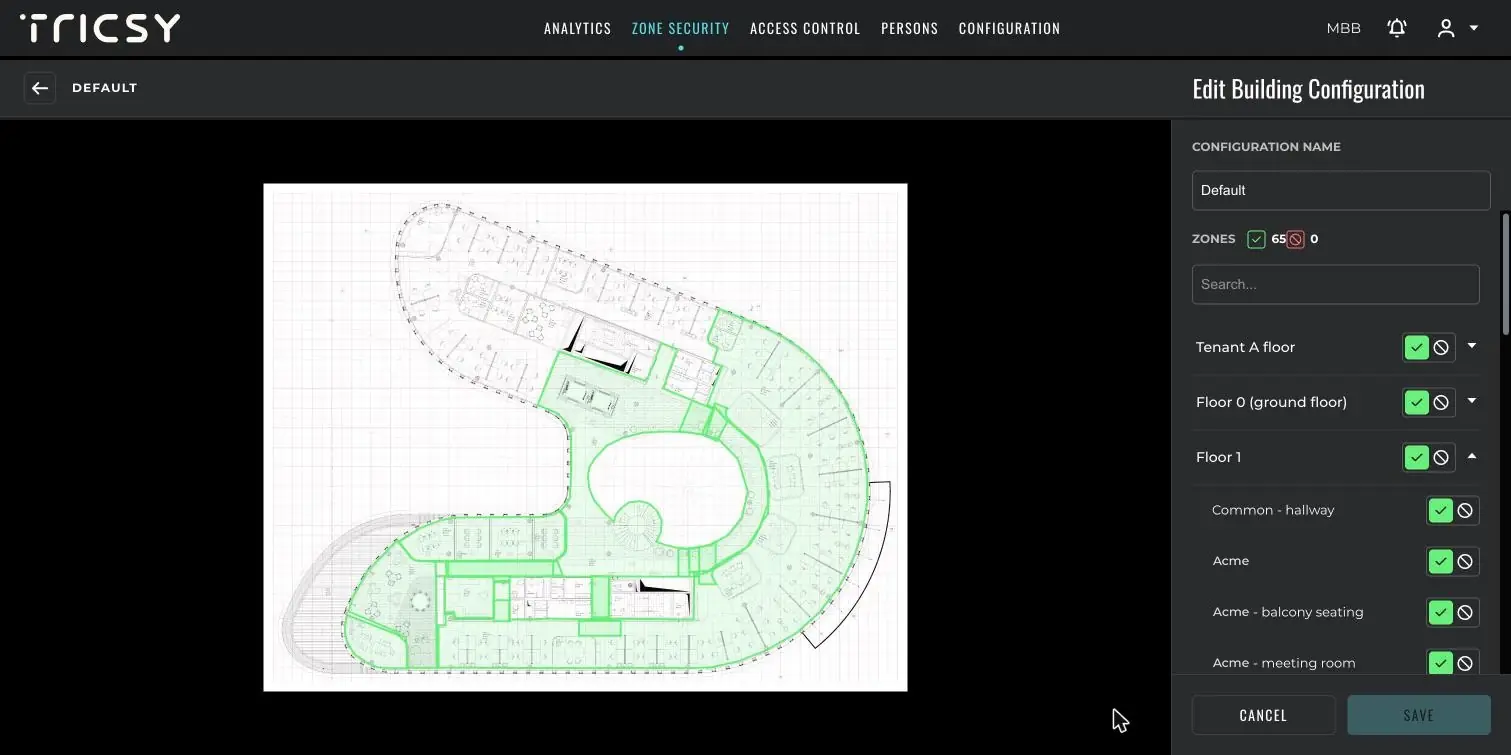
Use the copy button to duplicate a setup as a starting point for the next one.
Manuel opérateur
Operators work in Zone Security › Incidents, the module's start page. Every row is one person in one place they should not be. The operator's job is to check it and close it.
How you are alerted
- In the application — a notification "New Zone violation incident" appears with View Incident, and the list updates by itself.
- Google Chat — the space configured by the security manager receives "[Zone Security] New Incident: Level 1 Security Incident occurred on Floor … in Zone … involving …", then a message for each escalation and one when the incident is resolved.
- In the building — a warning light (gobo projector) or digital signage near the zone, if the trigger uses them.
- In the VMS — the incident is marked on the video timeline, if the trigger uses a VMS API call.
The incident list
| Column | Content |
|---|---|
| Incident type | Zone violation, Blacklist, and other types when enabled |
| Name / Watchlist | The identified person and their watchlist, or Unknown Individual |
| First detected | Zone, floor and time of the first detection |
| Latest detected | Zone, floor and time of the most recent detection |
| Status | Active (with its escalation level), Paused, Resolved or Auto-resolved, with who and when |
| Actions | Expand the row, then open Details or Share |
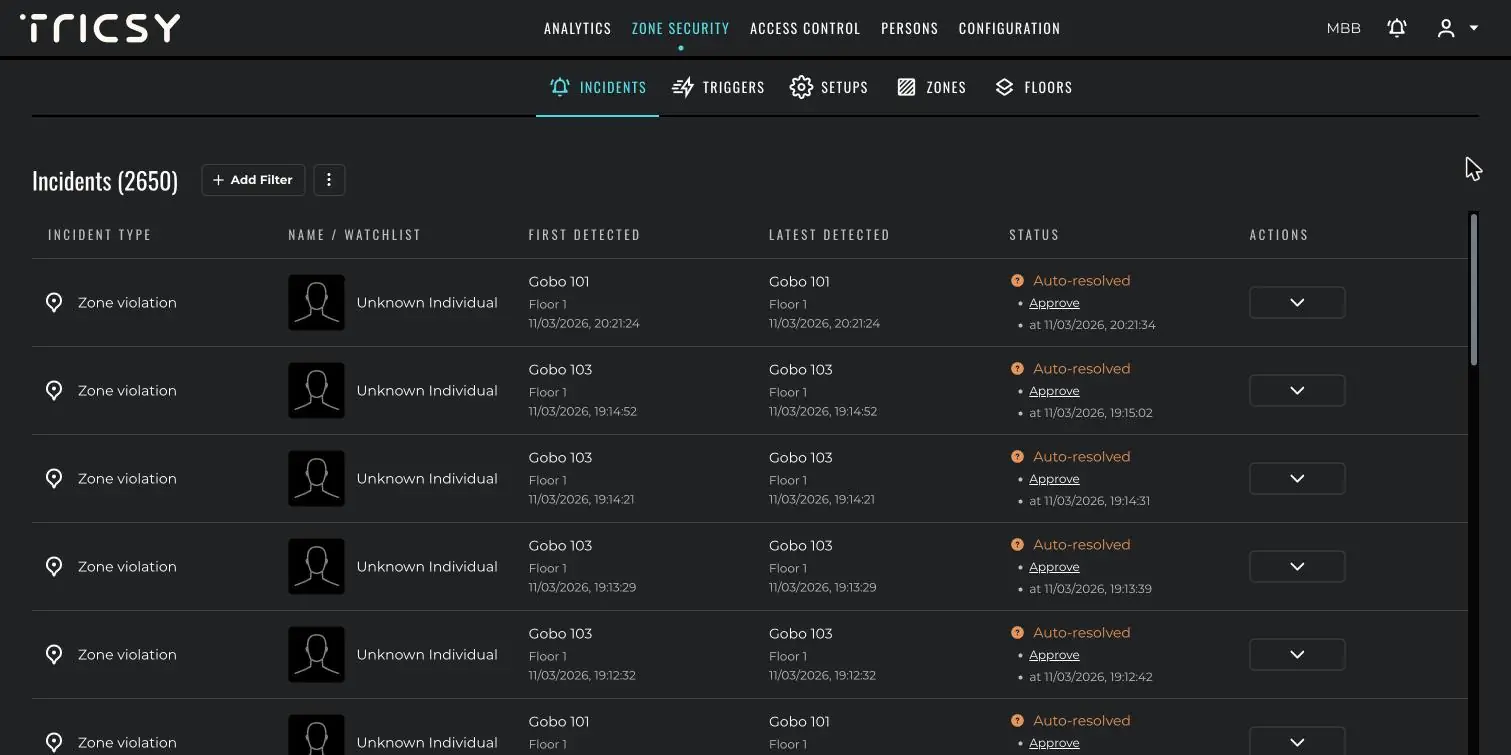
Active incidents are listed first, newest on top. Add Filter narrows the list by incident type, status, escalation level, individual name, assignee, resolved by, zone, floor, camera, watchlist or start date. The menu next to Add Filter clears all filters.
Expanding a row shows the camera snapshots of the first and latest detection side by side, so you can often decide without opening the detail. Collapse all closes every expanded row.
Incident detail
Click Details to open the full view:
- Individual — photo, name, user ID, phone, email and watchlists of an identified person; a silhouette for an unknown one.
- Camera detections — the frames that caused the incident.
- Floorplan position — where the person was seen. With MCT the dot follows the person live while the incident is active.
- Event log — every step with its time: the security event and its zones, each escalation level and its actions, status changes and the resolution. Download log saves it for a report.

The header shows the status and the assignee and holds the actions.
| Action | What it does |
|---|---|
| Assign / Reassign | Makes a colleague, or you, responsible for the incident |
| Share | Shares a link to the incident |
| Resolve | Closes the incident. Add an optional comment explaining what happened |
| Pause | Stops the incident's escalation for a while. The status shows when it resumes |
| Resume | Restarts tracking of a paused incident |
| Revert | Returns a resolved or paused incident to its previous state |
Handling an incident
- Open the incident from the notification, the Google Chat link or the list.
- Look at the camera snapshots and the position on the floor plan. Note the zone, the person and how long they have been there.
- Click Assign and take the incident, so colleagues know it is handled.
- Check the situation on camera, by phone or in person.
- Close it. The person had a reason to be there (an escort, a technician, a guest): Resolve with a short comment. It is expected for a while (a planned event, maintenance): Pause. The person must leave: act according to your site's security procedure, then Resolve with a comment.
- If the same allowed person keeps causing incidents, ask the security manager to add their watchlist to the zone, or the identity manager to enrol them.
You do not need to close every incident by hand. When the person walks into a zone they are allowed in, or the trigger's auto-resolve time passes, the incident becomes Auto-resolved and its warning light or signage stops. The event log records which of the two happened.
Incident statuses
| Status | Meaning |
|---|---|
| Active | Open. Escalation is running. The badge shows Level 1, 2 or 3 |
| Paused | Escalation stopped for a while by an operator |
| Resolved | Closed by an operator, with name, time and comment |
| Auto-resolved | Closed by the system: the person reached a permitted zone, or the trigger's timeout passed |
Référence
Incident types
| Type | Raised when |
|---|---|
| Zone violation | A person whose watchlists are not permitted in a tracked zone is detected there (resident, visitor or unknown) |
| Blacklist | The person violating a zone is a member of a watchlist marked as Blacklist in Trigger settings |
| VIP, VIP zone violation, Whitelist, SOS | Listed in the type menu. Reserved for future use |
Person roles
| Role | Who |
|---|---|
| Resident | An identified watchlist member who is not a visitor (employees, tenants) |
| Visitor | A member of a watchlist whose name contains "visitor" |
| Unknown Person | A face that matches no watchlist member |
Escalation actions
| Action | Effect | Repeats while active |
|---|---|---|
| Gchat | Message to the Google Chat spaces set in Incident handling | No |
| Warning light | Turns on the warning light (gobo) of the zone | Yes, every 5 s by default |
| Digital signage | Shows a warning on screens near the zone | Yes, every 5 s by default |
| VMS API call | Records the incident on the VMS timeline so the recording around it can be found at once | No |
The VMS integration can also record the names of recognised people over time. When you look for someone, you find them in the recorded video straight away.
Troubleshooting
| Symptom | Likely cause | What to do |
|---|---|---|
| No incidents at all | Zone tracking is Off, or a setup switched it off | Set Tracking status On, or apply the right setup |
| No incidents at all | No active trigger matches the zone, role and time | Check trigger Status, Activation period, Roles and Zones |
| No incidents without MCT | The camera is not assigned to the zone, faces are smaller than Min Face Size, or an edge camera has no permitted watchlist synced | Assign the camera. Move or zoom it so faces are at least 25 px. Sync the zone's watchlists to the edge stream |
| No incidents with MCT | MCT is disabled, the floor has no MCT model mapping, or the zone has no polygon | Enable MCT, fill in MCT Model Mapping, draw the zone (Coordinates defined) |
| An allowed person raises incidents | Their watchlist is not permitted in the zone, or they are not recognised | Add the watchlist on the zone's Watchlists tab. Improve their enrolment photo |
| Too many Unknown person incidents | Poor face visibility: angle, light or distance | Improve camera placement. Raise Min Number of Detections or Unknown Person Delay |
| Level 2 or 3 never fires | Auto-resolve time is shorter than the wait time of the level | Make Resolve after longer than the last level's wait time |
| No Google Chat messages | Webhook missing or blocked, or Gchat is not in the escalation path | Check Gchat Webhook URLs and the server's internet access. Add Gchat to a level |
| A camera reports the wrong zone | One camera was assigned to two zones | Keep each camera in one zone only |
Glossary
| Term | Meaning |
|---|---|
| SmartFace | Innovatrics video platform that detects and identifies faces in camera streams |
| MCT | Multi-camera tracking: combines several cameras into one track with a position on the floor plan |
| RTSP processing | The camera streams video and the SmartFace server detects and matches faces |
| Edge processing | The camera itself detects and matches faces and sends only the result (edge stream) |
| Watchlist | A list of enrolled people: employees of a company, visitors, blacklist |
| Tracklet | One continuous track of a face in one camera |
| Gobo | A projector that casts a warning symbol on the floor |
| Escalation level | A step of the escalation path, with its wait time and actions |
| Setup | A saved on/off state of zones, applied in one click |