Walk up, walk in.
The default credential. Matched in milliseconds while the person approaches, with nothing in hand — it works with gloves, full arms and dirty hands.
A card doesn’t know who’s holding it.
Face, palm and dynamic QR authentication with liveness and spoof detection — at every door, integrated with your existing ACS. Your face is always with you: you can’t leave it at home, and liveness detection stops anyone from using a photo of it.
Two 15-second scenes from an ordinary morning at the turnstile, back to back, and what changes when your face is your card.
One person record holds all three, and each door accepts what suits it. Everything is touchless: no fingerprints, nothing to press, nothing to clean.
The default credential. Matched in milliseconds while the person approaches, with nothing in hand — it works with gloves, full arms and dirty hands.
For riders who keep their helmet on, and for anyone who prefers not to use their face. Palms are enrolled on the same person record.
For visitors and people who have not enrolled a biometric. The code is time-based and refreshes every 30 seconds, so a shared screenshot stops working.
Spoof detection blocks photos and screens held up to the camera, and repeated attempts can lock a person out for longer. A spoof is never a quiet failure: it raises an alert for security.
Recognition runs on the Innovatrics engine — in the top 10 of the NIST Face Recognition Technology Evaluation for years, and shared first in FRTE 1:1 mugshot in September 2026. Real error rates depend on the threshold, the camera position and the enrolment photo, so we measure them on your site during the proof of concept.
| Decision | When |
|---|---|
| Granted | An enrolled person with rights to this door |
| Denied | An unknown face, or a rule not met |
| Blocked | A restricted person, or a spoof attempt |
Tricsy does not replace your doors, readers or access control. It adds a biometric credential and tells your system who is standing at the door.
An existing IP camera streams to the server, or a smart camera matches the face itself.
Every face becomes an event: a member of a watchlist, or an unknown face.
The Access Controller turns the event into granted, denied or blocked.
A Tricsy connector opens it through your ACS, intercom or relay. The screen says Welcome.
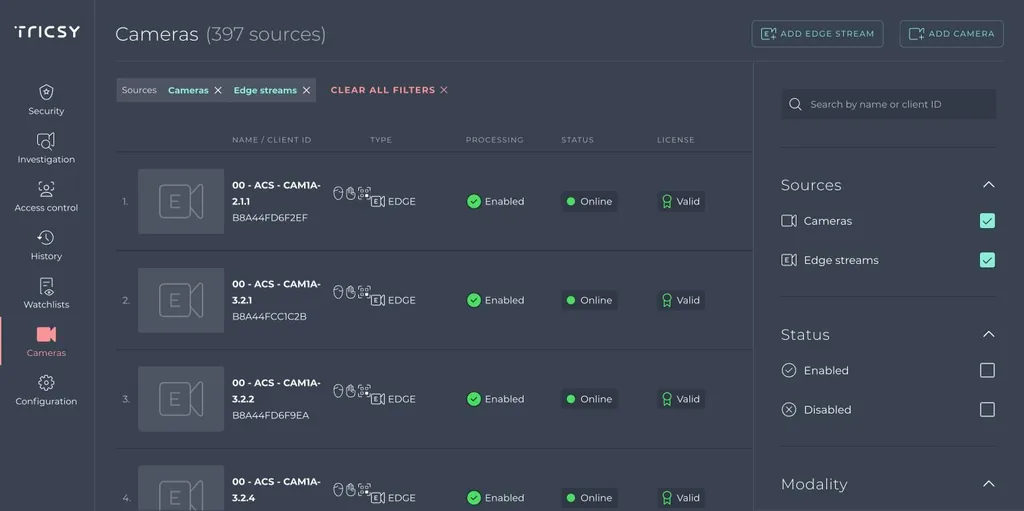
Each camera connects in one of two ways. Both sit side by side in SmartFace Station and use the same watchlists and access rules.
| RTSP camera | Edge camera | |
|---|---|---|
| Faces matched | On the server, from the video stream | On the camera; only the result is sent |
| Cameras | Any IP camera with RTSP, including the ones you already have | Axis M series or Hanwha P series with an Ambarella chip |
| Server | Sized to the number of streams | A small server runs up to 150 cameras |
| Network | Continuous video, 2.5–4 Mbit/s per camera | Events and small face crops only |
| Live preview | Yes | No |
| Best for | Existing cameras, mixed brands, few doors | Many doors, small servers, little bandwidth |
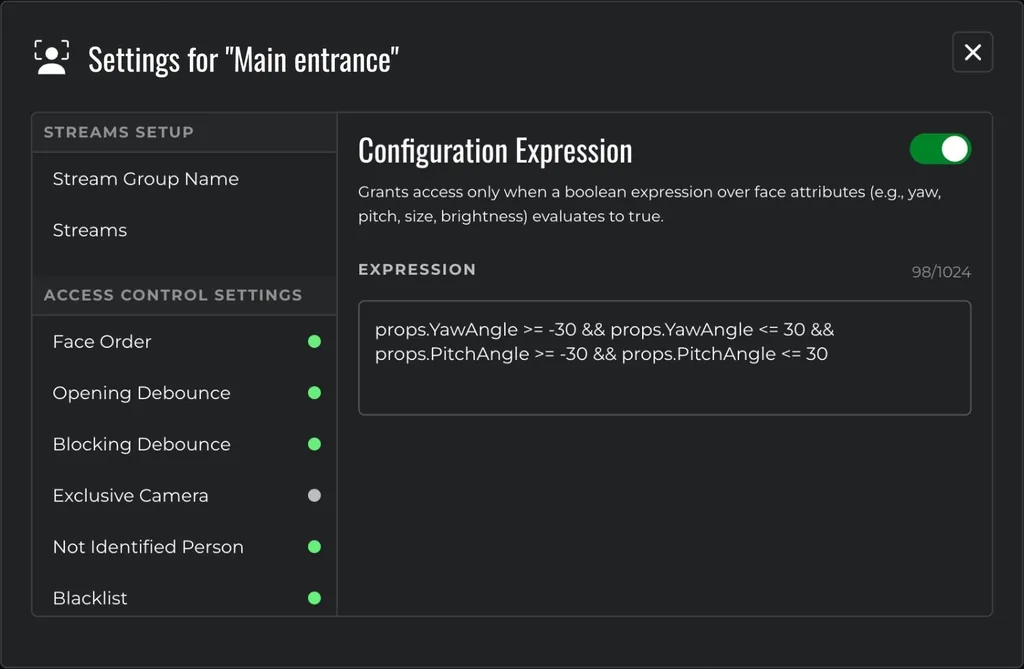
A camera at a door also sees everyone who walks past. SmartFace measures every face — its size, how far the head is turned, whether it grows as the person comes closer — so the door opens only for someone walking towards it.

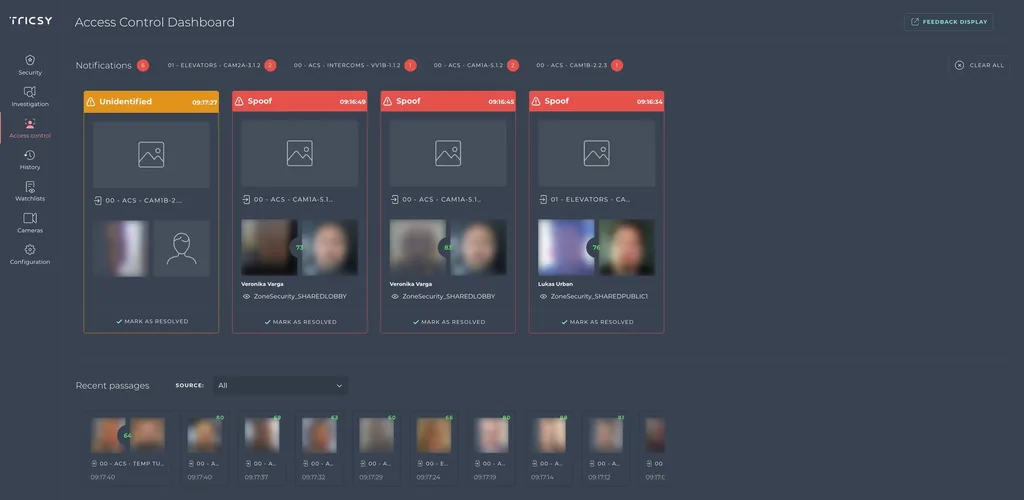
Reception and security work in SmartFace Station: who came in, who was turned away and why, and a history they can search.
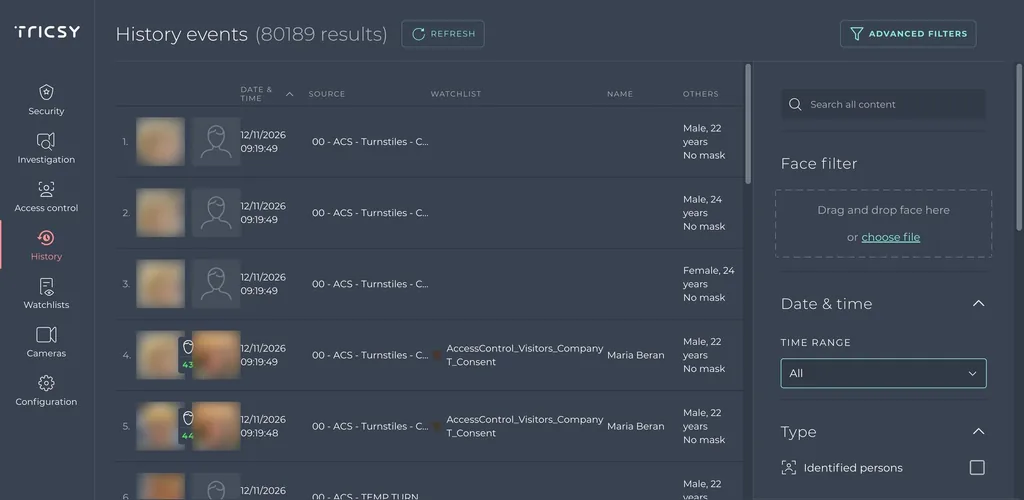
Granted passages, and alerts for unknown faces, restricted people and spoofs.
Search by time, camera, watchlist or a reference photo.
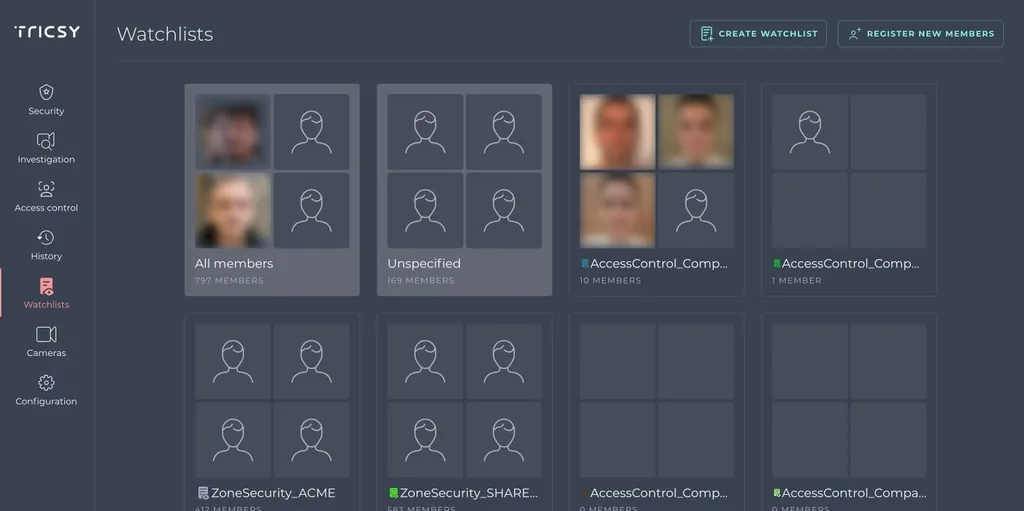
Enrol from a photo, or up to 30 photos at once. Members can carry an HR or visitor-system ID.
Good new photos are added overnight, so templates keep up with haircuts, glasses and age.
Access rights stay where they are managed today. People keep their cards if they want them; the face is one more credential, not a new system to run.
No connector for your system yet? Your software can stay the master: it syncs people over the REST API, receives decisions over gRPC or MQTT and decides whether the door opens.
| System | Type | Connection |
|---|---|---|
| Nedap AEOS | Access control | Connector |
| Inner Range Integriti | Access control | Connector |
| 2N | IP intercoms | Station video, opens via 2N HTTP API |
| Axis | Cameras, intercoms | Matching and door control |
| Advantech WISE, Dingtian, Shelly | Network relays | Doors and gates with no ACS |
| Your software | Any | REST, GraphQL, gRPC |
SmartFace runs on a Linux server on site and, in its default setup, sends no data to the internet. Doors keep opening when the connection does not.
| Server | Requirement |
|---|---|
| Operating system | Ubuntu 24.04 LTS with Docker |
| Processor | x86-64 with AVX2, 4+ cores — no GPU |
| Memory | 16 GB; 32 GB or more in production |
| Storage | 80 GB SSD |
| Hardware | Yours — Tricsy sizes it to your cameras |
Our manuals take your installer through it. Acceptance is one enabled camera and one live match against an enrolled test person.
Play the camera’s stream from the server itself, not only from a laptop.
Register it in SmartFace Station under a name that says where it hangs.
Switch processing on and start from the default detection settings.
Create a test watchlist and enrol a volunteer from a clear frontal photo.
The volunteer walks up; the Security dashboard shows a positive match.
Installed by a local partner you trust. We train them, provide the manuals and help with troubleshooting at no charge; a full installation by Tricsy is a paid service.
Step-by-step setup, first match and the handover checklist for installation partners. Part 02 covers edge cameras.
No. You buy them, and we size the server to your cameras and the number of people. The software is licensed per server and per camera.
Any IP camera that streams RTSP to the server, and for on-camera matching Axis M series or Hanwha P series cameras with an Ambarella chip. A 1080p stream is enough; 4K adds nothing.
No. It adds a biometric credential to it. Rights stay in your ACS, and the ACS decides whether the door opens.
No. Rules on face size and head angle let the door open only for people who walk towards it and look at it. We set them with you during the proof of concept.
Face access is opt-in. They can use a palm, a dynamic QR code, or the card they already have.
With a proof of concept on a free evaluation licence: remote installation and test enrolment in week one, live tuning in weeks two to five, a review in week six. We agree the success criteria before we start.
Book a live demo — remotely, or in person at Biometrics House in Bratislava, where the turnstiles, lifts, lockers and parking gate run on Tricsy.