Printers · built on

Print anywhere.
Collect with your face.

Send a document from any app. It waits in your MyQ queue until you stand at a printer — any printer, in any of your buildings. A small camera by the panel recognises your face, palm or QR code, logs you in, and one tap prints everything that is waiting.

1 job waiting Face · palm · QR Released at the printer · one tap
Printing at Biometrics House: from a table by the atrium to the printer cabinet, then Print All. 0:14, no sound. The name on the panel is blurred.
Release
1 tap
Print All, at once
Printer to pick
None
It prints where you are
Pages left in the tray
0
Jobs wait for you
Buildings
All of them
One queue across sites
How it works

Four steps. One of them is a tap.

MyQ holds the jobs on its print server. Tricsy adds what a card or PIN can’t: it recognises the person standing in front of it.

A laptop on a table at Biometrics House with the print dialog open
01 · Print

Print from anywhere

From any app, to one MyQ queue. No printer to choose and no IP address to look up.

The Tricsy camera housing with its cover on, mounted left of the printer panel; the panel shows Peter Novak logged in with one job waiting The Tricsy camera housing with its cover off, mounted left of the printer panel: inside are the camera module and its cable
02 · Walk up

Recognised at the printer

A small camera by the panel recognises your face, palm or QR code and logs you in. Its cover hides the module and the cable.

A finger taps the Print All tile on the printer panel; the logged-in name is blurred
03 · Tap

Print All

One tap releases every job that is waiting for you, at that printer.

A person takes the printed pages from the printer output tray
04 · Take it

Take your pages

They come out while you stand there. Nobody else touched them.

Confidential by default

The printer tray is where secrets leak.

You send a contract to print, a call pulls you away, and you remember it two hours later. In the meantime, ten people walked past the printer. With MyQ and Tricsy, the pages wait in the queue — not in the tray.

Direct printing10 people walked past
  1. 10:02Sent to printThe job goes straight to the printer.
  2. 10:03In the trayPrinted, and nobody is there.
  3. 10:05 – 12:00Out in the openAnyone passing can read it, or take it.
  4. 12:05You rememberYou hope it is still there.
With MyQ and TricsyNobody saw it
  1. 10:02Sent to printThe job goes to your MyQ queue.
  2. 10:03WaitingNothing is printed. Nothing is in the tray.
  3. 12:05You walk upThe camera recognises you.
  4. 12:05Printed for youOne tap, and you take it straight away.
Illustration of a typical morning. Times are examples.
Any printer, any building

Three buildings. One queue. Your face.

You don’t send a job to a printer — you send it to yourself. Collect it at the printer you happen to be standing at: next door, on another floor, or at another branch of the company.

  • No IP addresses

    Nobody has to know which printer is which, or add another printer to their laptop.

  • Every site on the same MyQ

    Head office and branches share one queue, so your jobs follow you.

  • Enrol once

    The same face, palm or QR code that opens the doors of the building.

Your laptop Your queue 3 jobs waiting
  • Head office 2nd floor printer Recognised · printing
  • Branch A Reception printer Same face works here
  • Branch B Open-space printer Same face works here

Whichever printer you walk up to, it knows you, and one tap prints your jobs.

Illustration: one MyQ queue across three company sites.
Liveness check

A photo of you won’t print your payslip.

Switch on the liveness check at the printers that handle confidential documents, so a photo or a video of you logs nobody in. The check covers face and palm; a QR code, or a PIN or card on the MyQ panel, gets no liveness check. At Biometrics House the check is on.

  • Liveness, when it matters

    Switch it on where the documents are confidential.

  • Nothing to carry

    Your face and palm stay with you, and printing needs no card or PIN.

  • Out of sight until you arrive

    Jobs stay on the print server, not in an output tray.

Printer · liveness check onHR printer
  • A live faceThe person who sent the jobLogged in
  • A photo of that facePrinted, or on a phoneRefused
  • A video on a screenReplayed in front of the cameraRefused
Illustration of what the liveness check accepts and refuses.

MyQ runs the printing. Tricsy knows who is printing.

We integrated with MyQ, so your print server, queues and printers stay as they are. Tricsy adds a small camera at each printer and logs the right person in.
Print server
At the printer
A small camera beside the panel
Identifies by
Face · palm · QR code
Release
Print All — one tap prints every waiting job
Liveness check
Optional, per printer · face and palm
Sites
Every building on the same MyQ
In daily use
Biometrics House in Bratislava, and our offices in Banská Bystrica and Brno
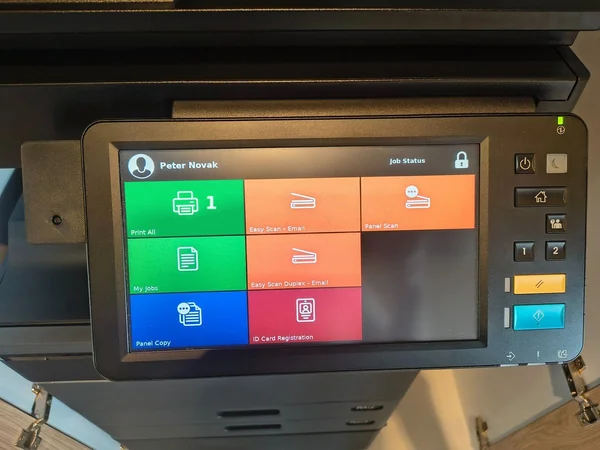
A printer panel at Biometrics House, logged in as Peter Novak, with one job waiting on the green Print All tile; the Tricsy camera housing is mounted to the left of the panel
Printer · Biometrics House Recognised · logged in 1 job waiting · Print All
A printer at Biometrics House, logged in as Peter Novak with one job waiting. The housing left of the panel holds the Tricsy camera.
Live in our offices

Come and print something.

The printers at Biometrics House work this way, and so do the printers in our offices in Banská Bystrica and Brno. Send a page, walk up, and watch it print.